
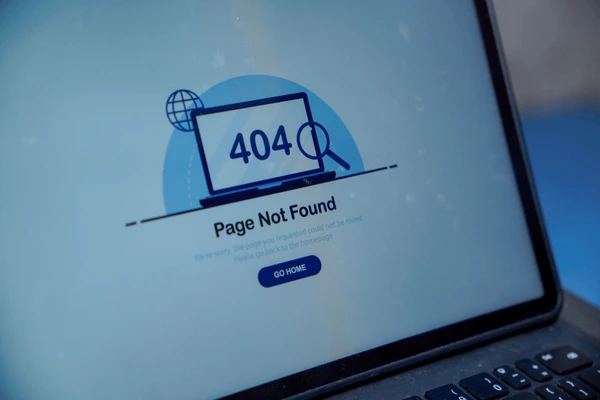
A 404 Not Found error in WordPress means the server cannot locate the page being requested. It is one of the most common WordPress errors and, despite being alarming, is almost always caused by a misconfigured or missing .htaccess file rather than the page actually being deleted. In the vast majority of cases, the fix takes less than two minutes. This guide starts with the quickest solution and works through to more involved scenarios.
Log into your WordPress admin panel. Go to Settings > Permalinks. Without changing anything, simply click the Save Changes button. WordPress will regenerate the .htaccess file with the correct rewrite rules. Check your site immediately. Most 404 errors resolve with this one action.
Why Does WordPress Get 404 Errors?
Understanding the cause makes troubleshooting faster. WordPress uses a feature called Pretty Permalinks – human-readable URLs like /about-us/ instead of /?page_id=2. These friendly URLs only work because of rewrite rules in a file called .htaccess in your WordPress root directory. This file tells the web server to route all requests through WordPress’s index.php, which then serves the correct page.
When this file is missing, corrupted or has incorrect rules, all URLs except the homepage return 404. The homepage works because it loads through index.php directly without needing the rewrite rules.

Step 1: Regenerate Permalinks
This is the fix for the vast majority of WordPress 404 errors. Log into your WordPress admin panel at yourdomain.com/wp-admin. Go to Settings > Permalinks. The current permalink structure will be selected. Without changing anything, scroll down and click Save Changes. WordPress will write a fresh .htaccess file with all the correct rewrite rules.
After saving, open your website homepage in a browser and try navigating to other pages. Check your blog posts, service pages and any other internal links. If they are all working, you are done.
Step 2: Check if the .htaccess File Exists
If regenerating permalinks does not fix the issue, the .htaccess file may be missing or not writeable. Log into your hosting account’s cPanel (usually at yourdomain.com/cpanel). Open File Manager. Navigate to the public_html directory (or wherever WordPress is installed). Click Settings in File Manager and enable Show Hidden Files (dotfiles). Click Save.
Look for a file named .htaccess. If it is not there, the file is missing and needs to be created.


Step 3: Create a New .htaccess File
If the .htaccess file is missing, right-click in the public_html directory in File Manager and select New File. Name it exactly .htaccess (including the dot, no extension). Click Create.
Right-click the new file and select Edit. Paste this standard WordPress .htaccess content:
# BEGIN WordPress
<IfModule mod_rewrite.c>
RewriteEngine On
RewriteBase /
RewriteRule ^index.php$ – [L]
RewriteCond %{REQUEST_FILENAME} !-f
RewriteCond %{REQUEST_FILENAME} !-d
RewriteRule . /index.php [L]
</IfModule>
# END WordPress
Click Save Changes. Return to your website and test all pages again.
Step 4: Check File Permissions
The .htaccess file must have correct permissions for the web server to read it. In cPanel File Manager, right-click the .htaccess file and select Change Permissions. Set the value to 644 (Owner: Read Write, Group: Read, World: Read). Click Change Permissions.
Step 5: Test Plugin Conflicts
Some plugins modify .htaccess or interfere with WordPress URL routing. Go to Plugins > Installed Plugins in your WordPress admin. Click Deactivate in the bulk actions dropdown, select all plugins and deactivate them all. Check whether the 404 errors are resolved. If they are, reactivate plugins one at a time – recheck after each activation until the problematic plugin is identified.
Security plugins like Really Simple Security, Wordfence and iThemes Security frequently add their own rules to .htaccess. Conflicts between these rules and WordPress core rules can cause 404 errors. If you recently installed or updated a security plugin before the 404 errors started, that plugin is the most likely culprit.
Need IT Support in Malaysia?
Cybergate provides WordPress website maintenance for businesses across KL, Selangor, Negeri Sembilan and Melaka. Our team is available Monday to Saturday, 9am to 6pm.